


Finding the right process, document or role in the ARIS Portal is now faster and more intuitive. With ARIS 10.2026.10, Enterprise Search puts categories and filters right at the top of your results, lets you filter by properties such as responsible person or validity date, and shows on every result cards why it matched.
What is included in Enterprise Search of ARIS 10.2026.10
Search filters now sit directly at the top of the result list, so they’re always in view. Predefined search categories give quick access to the most relevant content, and each category shows how many results it contains. Property filters, such as responsible person or validity date, now reduce the result list directly. Searches for numberings and IDs return exact matches only, and redesigned result cards use clear, business user-friendly language
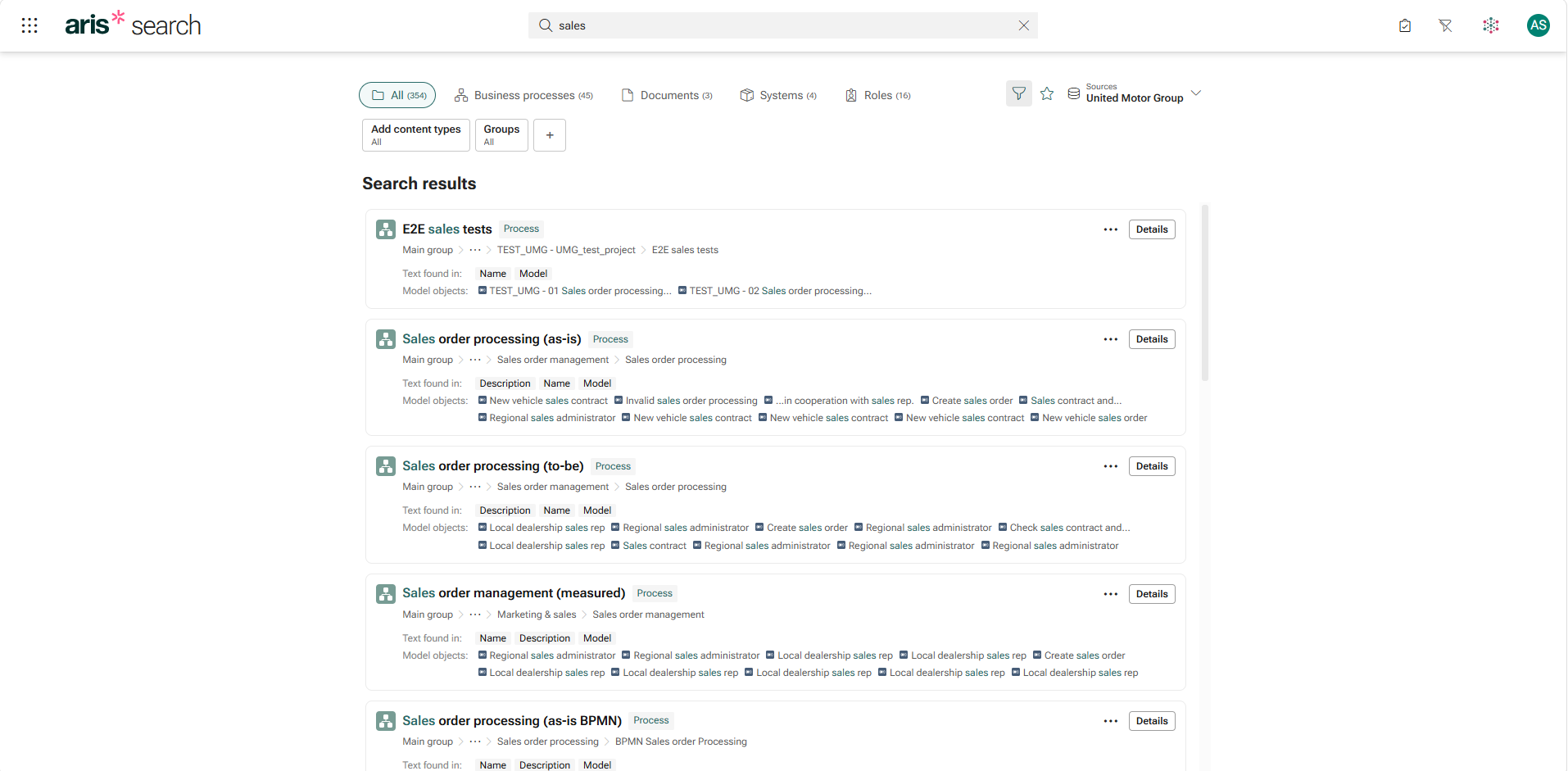
[Access to filters before the changes]
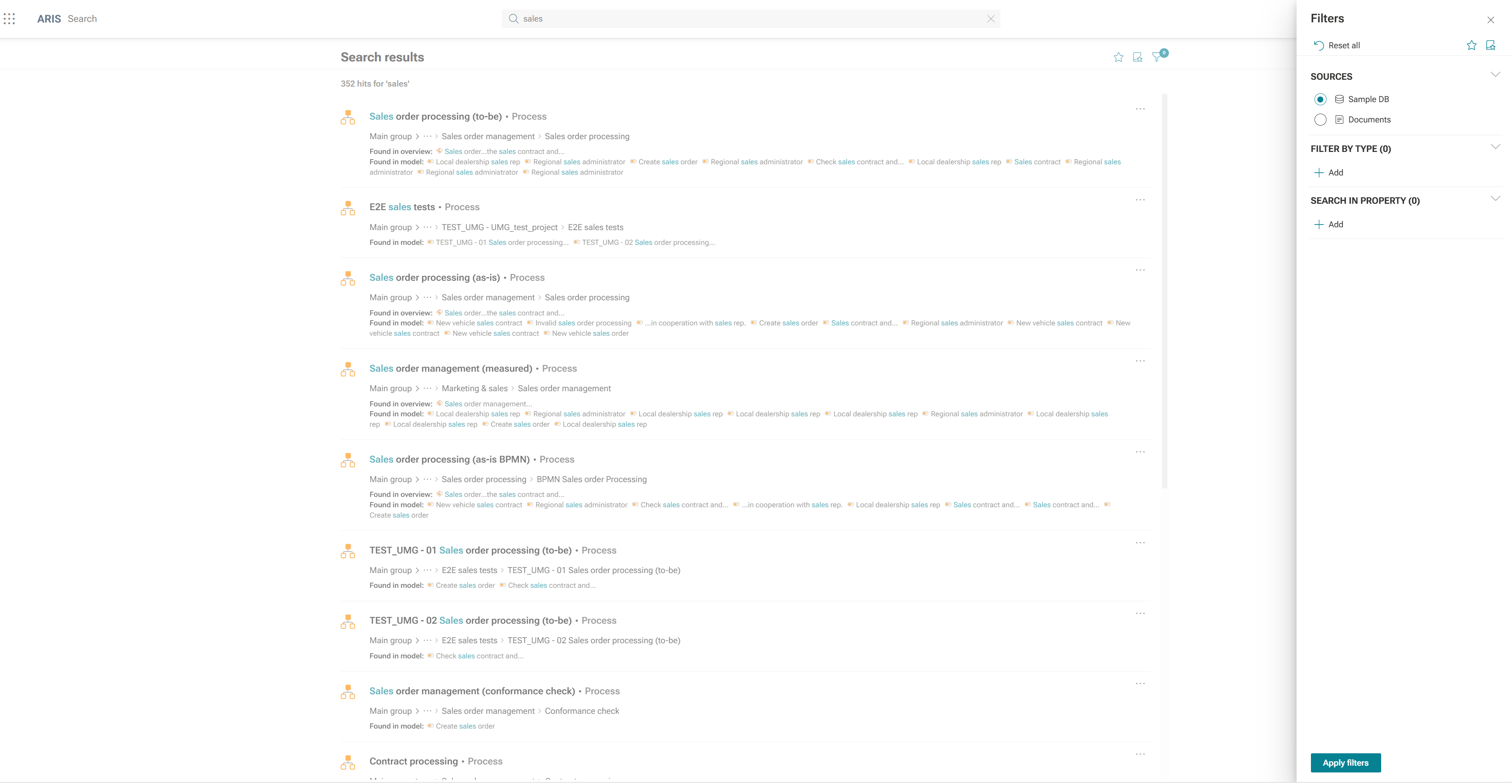
What changes for users
What this means for you and your teams:
1. Fewer clicks to find what you are looking for. Categories and filters are visible right away, so users can narrow a result list in a single click.
2. More useful options to filter result lists. Users can also filter by folder location or by properties, and combine several filters to get to a short, relevant list.
3. A clear reason for every match. When a property filter is applied, its value appears on the result card, so users can identify the right item without opening it.
4. Exact results for IDs. Searching for a process number or ID takes users straight to the item with that number.
How filtering works
Search categories at the top
Categories such as processes, documents or roles appear as tabs above the results, each with its number of hits. Users can start from All results or from a single category and filter further from there.
[Screenshot: Filter categories, sources and favorite search filters]

Advanced filter options
Within a category, one click shows which content types the results contain. Deselecting a type reduces the list further. In our example, the list went from 45 results down to 13 in two clicks. The + button adds more filters based on additional properties.
[Screenshot: advanced filter options]

Combining filters
Users can set up any combination of filters. Filters apply across all categories, but a filter only takes effect where the property exists. Filters that don't apply to the current category are greyed out. The result card shows the value of each matching filter.
[Screenshot: applying property filters]

Smarter results and ranking
Each result now shows exactly where the search term was found, for example in the name, the description, the model or a department. Ranking depends on two things:
- How many fields contain the term. The more fields that contain the term, the higher the result ranks, including hits in related objects. Hits in related objects also count.
- The ranking set up in the Content Type Configuration (CTC). Administrators can weight content types on the Published content search settings page to push them higher.
What administrators should know
Search configuration requires access to the ARIS Administration space and functional rights for content type configuration. The settings are in Administration > Publication settings > Content type configuration > Content type sets.
Each content type set has two tabs for Enterprise Search:
- Published content search defines which content types and properties are indexed, which of them appear as filter criteria, and how they are ranked.
- Search categories is new in ARIS 10.2026.10 and lets you adjust the default categories.
To make changes, you need your own content type set, set up and activated for your Modeling and Publication space. In the Search categories tab you can then:
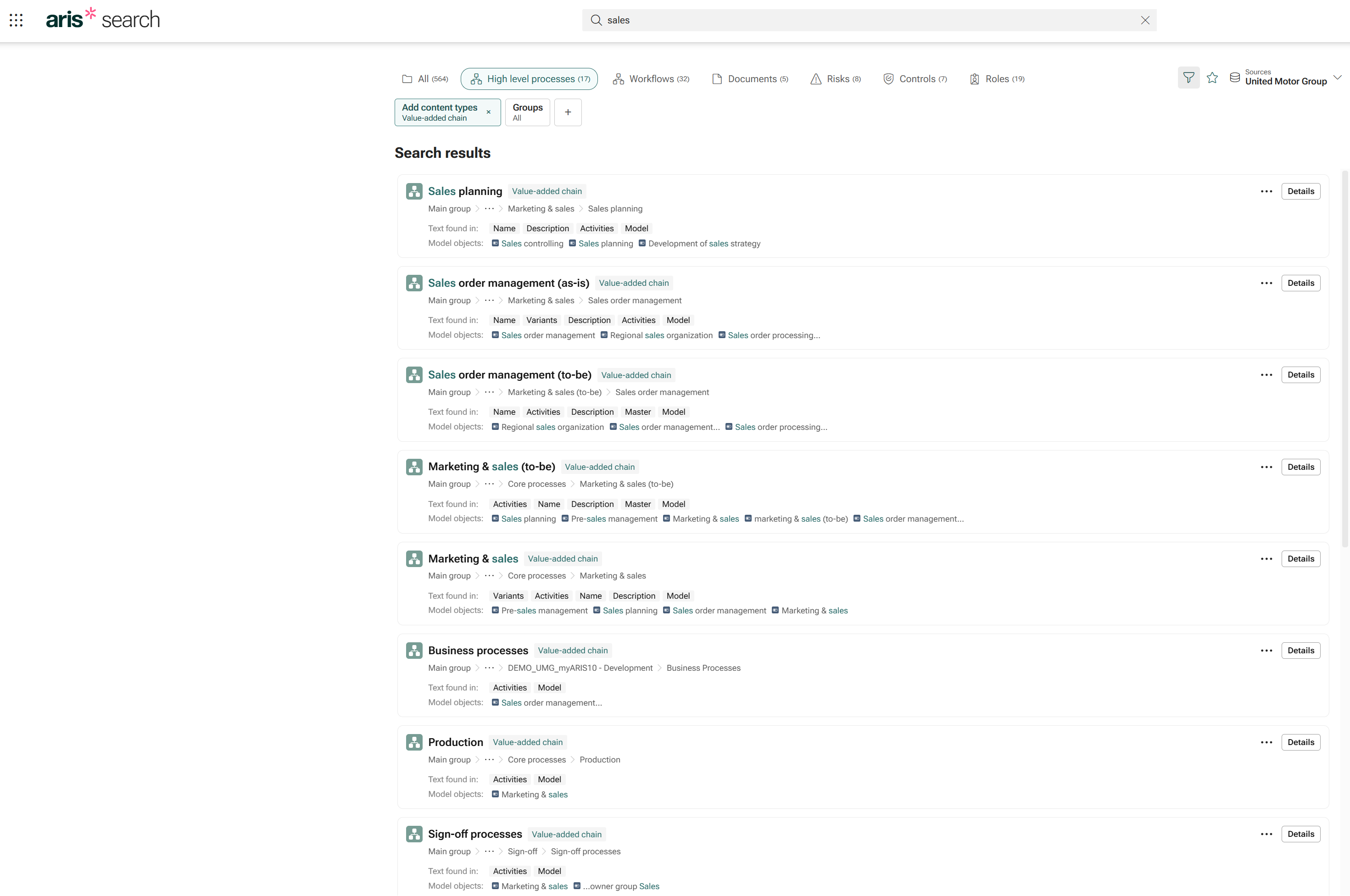
- Activate other predefined categories, or deactivate the defaults
- Assign other content types to a category and change category icons
- Rename categories to match your corporate language
- Add new categories with your own content types
- Import the categories from your Portal's Catalog/Glossary configuration
[Screenshot: search categories tab]

[Screenshot: result from the adjusted category set]
Moving from the old Portal search
If your organization currently uses the classic Portal search, now is a good time to switch to Enterprise Search. With flexible filters and categories, Enterprise Search now offers everything users need to find content quickly, built on customer feedback.
Enterprise Search is also the foundation for ARIS AI Companion. Switching now gives your users a better search experience today and gets your Portal ready for ARIS AI Companion, so users can ask business questions about your process content.
We recommend setting up Enterprise Search together with the Content Type Configuration. That way you control which content and properties are indexed, which filters users see, and how search categories are named in your organization.
Availability
- Editions: Enterprise Private Cloud, Enterprise Public Cloud, On-premises
- Products: ARIS Enterprise – Viewer, ARIS Viewer – Enterprise Public Cloud
- From version: ARIS 10.2026.10
- Prerequisites: Enterprise Search is activated; Content Type Configuration highly recommended, and required for changing search categories. If your published Portal content uses customizing, some manual adjustments may be needed when switching from the classic search.
Summary
The redesigned Enterprise Search makes it quicker and easier to find exactly the content you need in ARIS Portal. Filters are now visible from the start, property filters reduce the list as expected, and result cards show why each item matches.
For ARIS users, this means fewer clicks and shorter, more relevant result lists. Administrators can adapt categories, filters and ranking directly in the Content Type Configuration.