
Back to: ONE Standard - PCF® Industry Loader
Table of Content
- Prerequisities
- Install Back to: ONE Standard - PCF® Industry Loader via ARIS Gallery
- PCF Content Import
- Database renaming and publication
Prerequisites
The PCF® Industry Loader is based on the ONE Standard methodology. So, the ONE Standard – Foundation must be available. There are two options to install this Accelerator:
(The PCF® Industry Loader script and its accompanying template database are installed on top of the existing ONE Standard – Foundation setup.)
Install ONE Standard - PCF® Industry Loader via ARIS Gallery
- Open the ARIS Gallery in your project room
- Go to BPA > Getting Started Framework and click the ONE Standard - PCF® Industry Loader
- Press Install
PCF Content Import
The manual installation is now complete. However, the PCF® content has not yet been imported. The template database and script are in place — but to generate your actual process content, you must run the PCF® Content Import as a separate step.PCF® Content Import – HowTo
Database renaming and publication
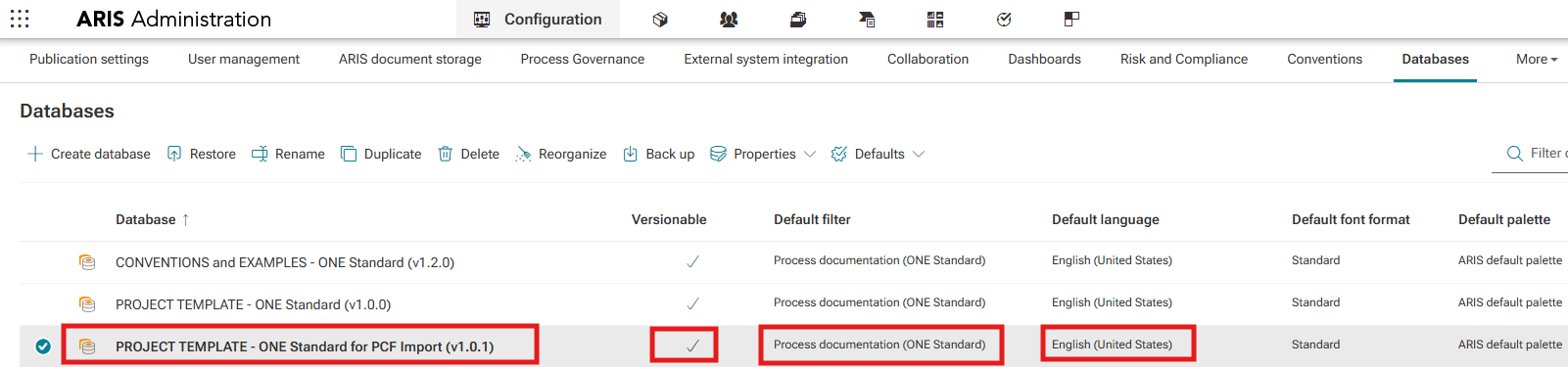
Verify Database Settings
- After restoring the datbases, check properties respectively:
- assigned Default filter = Process Documentation (ONE Standard)
- Default language = English (United States) - The first versions are prepared only for this language!
- check Versionable settings
Adjust Publication Settings
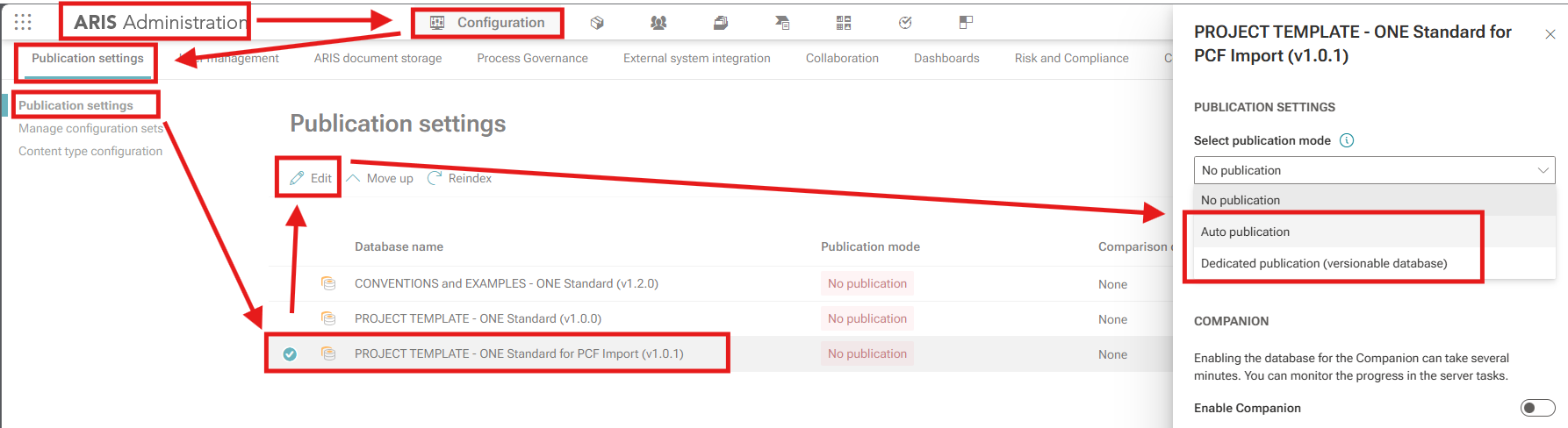
- Afterwards open Publication Settings.
- For your Project Template Database (your future process repository), choose the appropriate publication option:
- During the initial setup phase: Auto Publication is sufficient.
- Once moved into production: switch to Dedicated Publication.
Need Help?
If you have questions about any Accelerator or want to exchange experiences with others, visit our community forum. There you can ask questions, share insights, and support each other.