
Back to: ONE Standard - PCF® Industry Loader
This page provides guidance for the manual installation of the ONE Standard – PCF® Industry Loader. It outlines the required files, prerequisites, and step-by-step instructions to set up the accelerator without using the ARIS Gallery.
Table of Content
- Prerequisities
- Download the Files
- Import Accelerator
- PCF Content Import
- Other Settings
Prerequisites
The PCF® Industry Loader is based on the ONE Standard methodology. So, the ONE Standard – Foundation must be available. There are two options to install this Accelerator:
(The PCF® Industry Loader script and its accompanying template database are installed on top of the existing ONE Standard – Foundation setup.)
Download the Installer Files
- Go to the ARIS Community Download Center.
- Log in to access the download section for the ONE Standard PCF Industry Loader.
- Download the .zip file
Step 1: Import Template Database
Restore the "PROJECT TEMPLATE - ONE Standard for PCF Import (vX.Y.Z)" database.
- Log in to ARIS and open ARIS Administration.
- Navigate to Databases.
- Choose Restore database, then select the PROJECT TEMPLATE - ONE Standard for PCF Import (vX.Y.Z).adb file from your unzipped installation folder.
- Ensure that the database is set as a Versionable Database (this setting is typically preselected).
- The restoration process completes within a few seconds.

Step 2: Import Industry Loader Script
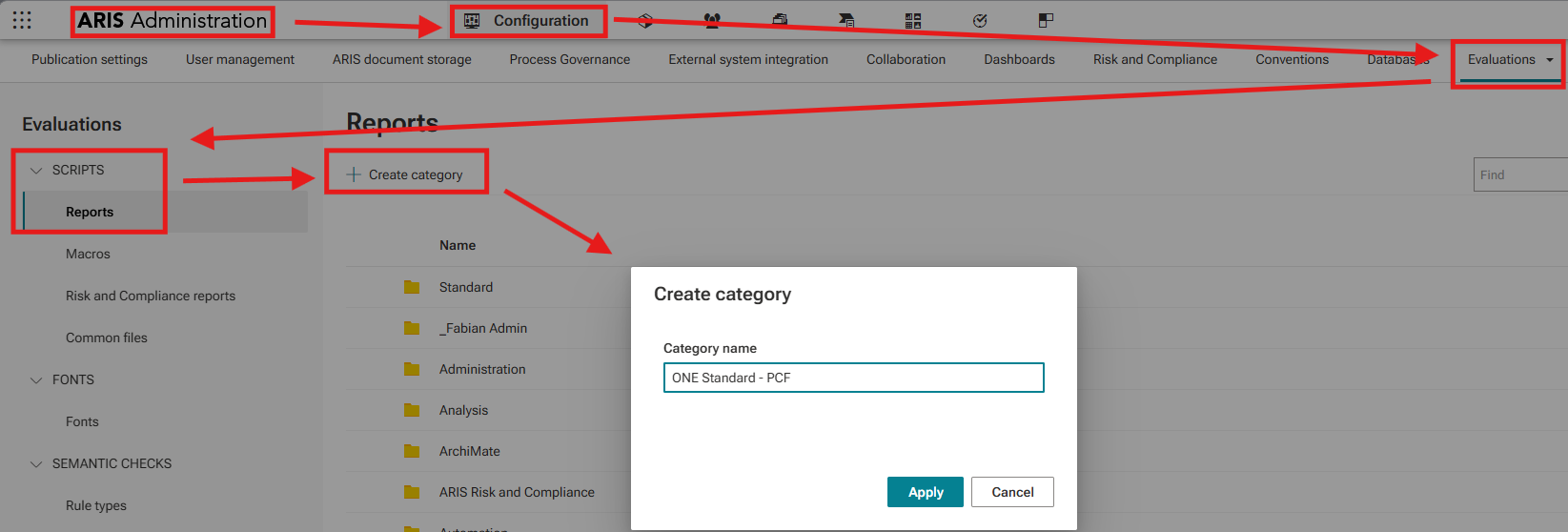
- In ARIS Administration, navigate to Evaluations > Scripts > Reports.
- Create a new category and name it ONE Standard - PCF.
- Open the newly created category.
- Click the Import button and select the .arx file (e.g. ) from your unzipped installation folder.
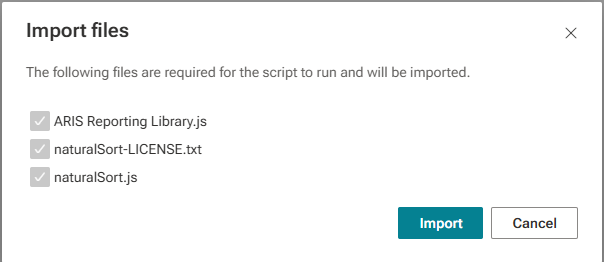
- An import dialog will appear listing 3 files that are included automatically. No changes are required here — confirm by clicking Import.
- The import completes automatically.

PCF Content Import
Other Settings
Verify Database Settings
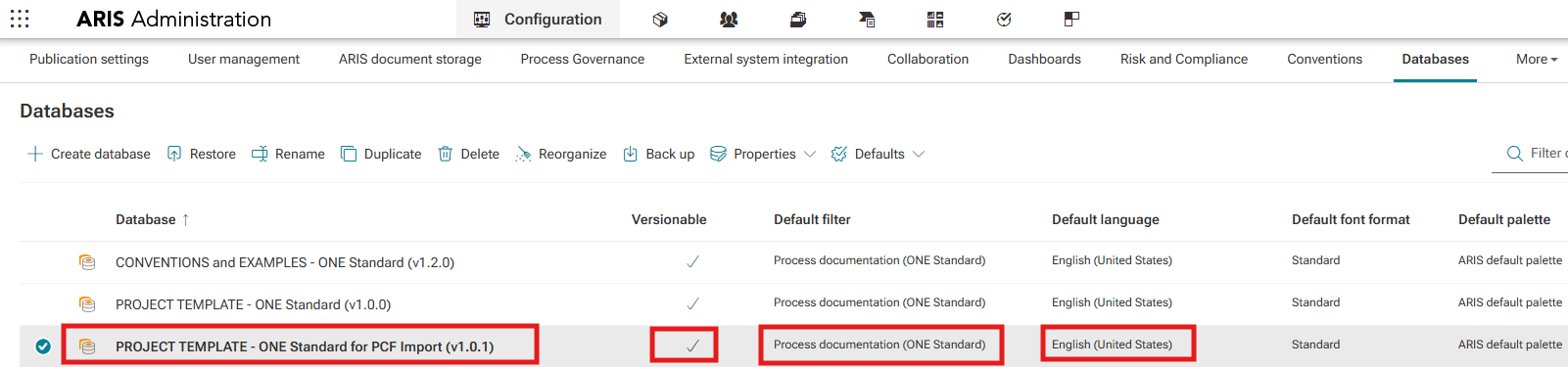
- After restoring the datbases, check properties respectively:
- assigned Default filter = Process Documentation (ONE Standard)
- Default language = English (United States) - The first versions are prepared only for this language!
- check Versionable settings
Adjust Publication Settings
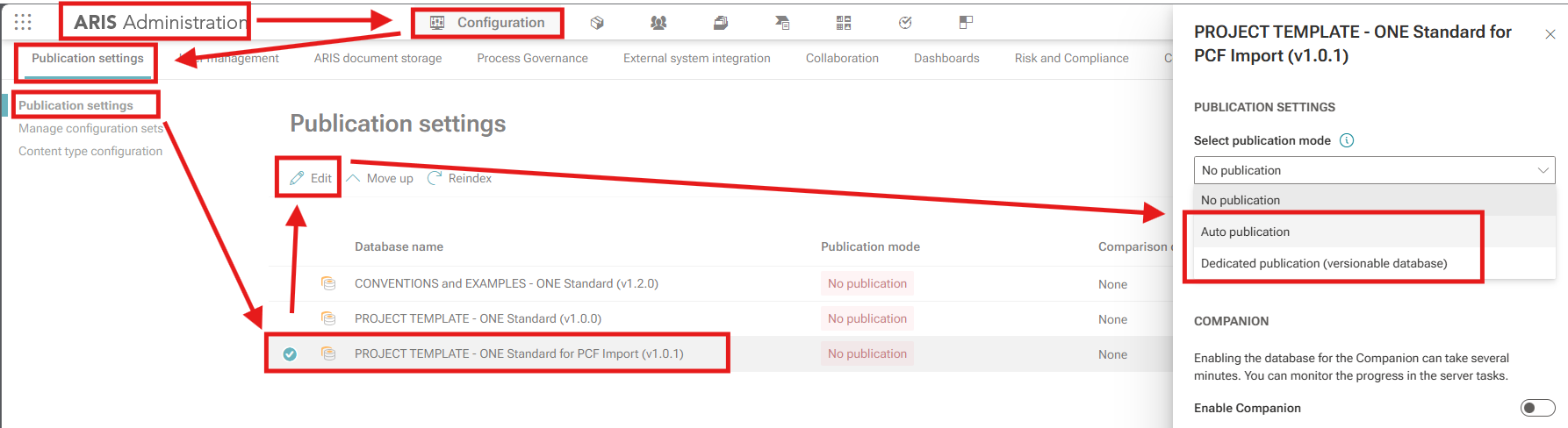
- Afterwards open Publication Settings.
- For your Project Template Database (your future process repository), choose the appropriate publication option:
- During the initial setup phase: Auto Publication is sufficient.
- Once moved into production: switch to Dedicated Publication.
Need Help?
If you have questions about any Accelerator or want to exchange experiences with others, visit our community forum. There you can ask questions, share insights, and support each other.