
v1.x.y
Modeling Conventions and Guidelines
- General Modeling Conventions, Guidelines, and Fundamentals
- Process Architecture & Process Modeling
- Library Modeling
- Group and Assignment structure
- Semantic Checks
Group and Assignment Structure in the ARIS Process Repository
The Process Repository represents the top-level structure (root) within the ARIS database.
Groups:
All content is organized in a system of Groups — this term corresponds to what users might commonly refer to as folders in a file system (e.g., Windows Explorer).
Groups are used to organize models, objects, and subgroups in a hierarchical and consistent manner.
Permissions (e.g., Read, Write, etc.) can also be assigned at the group level to control access and editing rights.
Assignments:
Assignments represent the connection between objects and models and are a key element in maintaining the repository’s leveling structure. Whenever a new model is assigned to an object, this triggers the creation of a new subgroup, following the conventions described in this guide.
This page consists of two chapters:
- General Conventions for Creating Additional Groups
- Initial Template Structure
General Conventions for Creating Additional Groups
During the course of the project, additional subgroups may be created within the repository. The creation of new groups follows always the same principles across all sections of the Process Repository.
The repository is organized in hierarchical levels, each representing logical groups. At each level, groups contain models, objects and subgroups, reflecting the organization of processes, functional areas, or other relevant entities. Assignments represent the connection between objects and models and are an integral part of the repository’s structure.
The hierarchy ensures clear navigation, avoids duplication, and supports consistent assignment and group management.
Trigger Point for Group and Assignment Creation
Key Fact:
According to the convention, going one level deeper in the repository hierarchy involves manually creating a new Assignment based on an existing object. During this approach,
- the user also creates a new model representing that Assignment,
- and selects a location for a new group, which is then created to store the model.
Explanation:
- The creation of a new Assignment triggers subgroup creation.
- All steps are performed manually by the user, following the convention:
- Start from an existing model and select the object to assign.
- Create a new Assignment based on that object.
- Specify that a new model should be generated to represent the Assignment.
- Select or create the appropriate group where the new model will be stored.
- This ensures that models, Assignments, and groups remain aligned with the hierarchical structure.
Naming Conventions and Guidelines
The name of the object used to generate the Assignment determines:
- The name of the new model.
- The name of the new group in which the model is stored.
Tip:
Before creating a new Assignment, copy the object name (Ctrl-C) and paste it into the group creation dialog to ensure exact naming consistency.
Initial template structure
At the top level, the repository is divided into four main groups:
- A. Process Landscape
- Contains the hierarchical process structure of the organization.
- B. End-to-End Business Scenarios
- Includes cross-functional or value-chain–oriented process scenarios.
This group is part of the standard repository structure but is initially empty.
- Includes cross-functional or value-chain–oriented process scenarios.
- C. Organizational Structure
- Holds models and definitions related to organizational units, roles, or governance entities.
This group is part of the standard repository structure but is initially empty.
- Holds models and definitions related to organizational units, roles, or governance entities.
- D. Library
-
Serves as a central library for reusable content such as documents, business objects, metrics, roles, risks, and applications.

-
Note:
- The term 'Process repository' of the main group (as well as the database name 'PROJECT TEMPLATE Database - ONE Standard') can be adapted to customer-specific namings.
- However, all predefined template groups (A–D) must retain their exact naming and structure to ensure compatibility and consistent navigation across projects.
Each of these main groups follows a defined purpose and corresponding modeling and assignment conventions that guarantee consistent organization and usability throughout the repository.
A. Process landscape
The Process landscape model contains the Level-1 process model named "Process landscape". Within this model, three Process categories are predefined:
- Management processes
- Core processes
- Support processes
Since these three Process categories already exist in the Level 1 model of "Process landscape", we recommend continuing to use them.
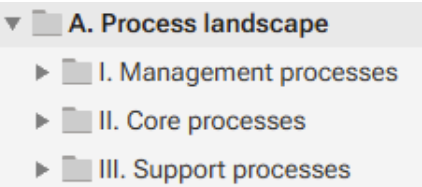
Correspondingly, the repository contains three Groups under Process Landscape:
- I. Management Processes
- II. Core Processes
- III. Support Processes
Because the names of Groups should always be identical to ARIS object (here: Process category)
Note:
These Groups are exceptionally numbered using Roman numerals.
This ensures consistency and alignment with the predefined structure.
B. End-to-End Business Scenarios and C. Organizational Structure
Both groups — End-to-End Business Scenarios and Organizational Structure — are included in the repository structure but remain initially empty until project-specific content is developed.
It is strongly recommended to retain both the structure and the exact naming of these subgroups.
D. Library
The Library group contains a predefined, hierarchical structure of subgroups as shown in the screenshot.
It is strongly recommended to retain both the structure and the exact naming of these subgroups, as they form the standardized framework for organizing reusable reference content within the repository.

Need Help?
If you have questions about any Accelerator or want to exchange experiences with others, visit our community forum. There you can ask questions, share insights, and support each other.